How to Use the Asset Browser
The Asset Browser is where you import, convert, organize, and manage the assets used in your project, including 3D models, animations, Gaussian splats, lights, and primitives.
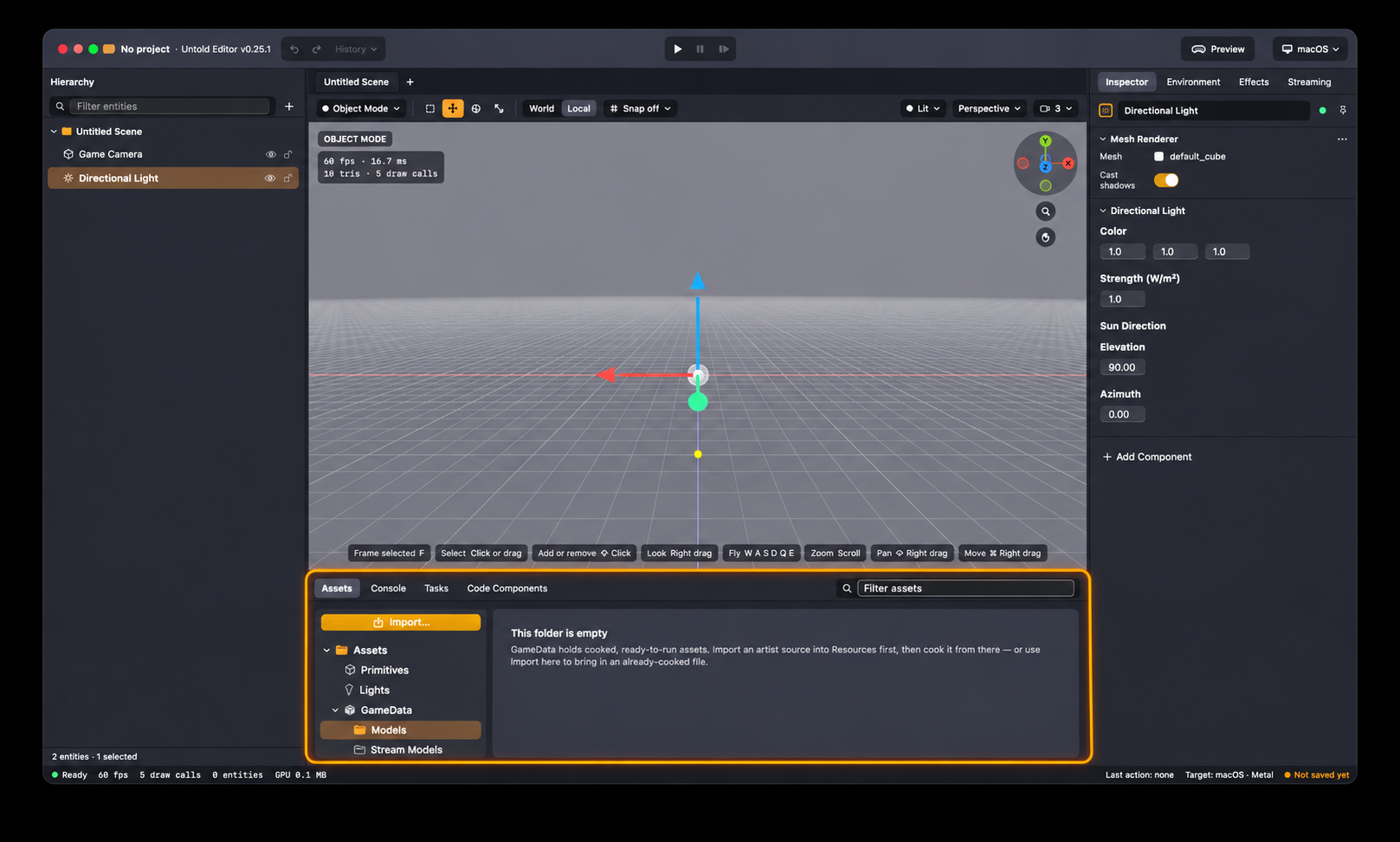
The Asset Browser organizes files into two main directories:
Resources: Contains your original source files, such as Blender, USD,
.ply, and.spzfiles.GameData: Contains cooked assets that have been converted into formats optimized for use by Untold Engine.
1. Import an Asset
Click Import… at the top of the directory tree.
Select a source file, such as
.blend, USD,.ply, or.spz.The imported file will appear in the Resources directory.
You can also import files by double-clicking an empty area in the folder view or by right-clicking and selecting Import….
Note: If you import an asset that is already in an Untold Engine format, such as .untold, .untoldgs, or .untoldanim, it will automatically be placed in the appropriate GameData category.
2. Convert a Source File into an Untold Asset
Before using a source file in your scene, you may need to convert it into an Untold Engine runtime format. This process is called cooking.
Open the Resources directory.
Right-click the source file you want to convert.
Select the appropriate cooking option:
Cook to .untold… — Convert a 3D model into an Untold Engine asset.
Cook to .untoldanim… — Convert animation data into an Untold Engine animation asset.
Cook to .untoldgs… — Convert
.plyor.spzfiles into Gaussian Splat assets.Cook to Tiled Stream Model… — Prepare large scenes for streaming.
Once cooking is complete, the converted asset will appear in its corresponding GameData category.
Note: Some source files support multiple cooking options. Select the format that best matches how you intend to use the asset.
3. Add an Asset to Your Scene
Open GameData and locate the asset you want to use.
Drag and drop the asset into the Viewport or Hierarchy.
Alternatively, double-click the asset to add it directly to your scene.
4. Add Lights and Primitives
The Asset Browser also provides ready-to-use objects that you can add without importing or cooking external files.
Open the Lights shelf to add Point, Directional, or Spot Lights.
Open the Primitives shelf to add basic 3D shapes, such as cubes, spheres, and planes.
Drag an item into the Viewport or double-click it to add it to your scene.
Note: If your project defines custom entity types in code, they will appear in a separate Entities shelf.
5. Organize Your Assets
Right-click an asset or folder to access the available management options:
Rename: Change the name of an asset or folder.
Move to…: Move an asset to another directory.
New Folder: Create a folder to organize your assets.
Reveal Source Folder: Locate the original source file associated with a cooked asset.
Delete: Remove an asset or folder after confirming the action.
6. Load an Authored Scene
Some assets contain complete scene information, including environment settings.
To load these settings:
Locate the authored scene asset in the Asset Browser.
Right-click the asset and select Load Authored.
The scene's authored environment settings will be loaded into the Environment panel.
This option is available for supported Blender-authored scenes, tiled scene manifests, and remote streams.
7. Import a Remote Stream
Untold Engine supports remote asset streaming, allowing you to work with scene content hosted outside your local project.
Right-click an empty area in the folder view.
Select Import Remote Stream.
Enter the stream URL in the window that appears.
The remote stream will be registered in the Asset Browser for use in your project.