How to Use the Environment Panel
The Environment panel allows you to configure scene-wide lighting and control the background displayed in your scene. Use it to load environment settings, set up Image-Based Lighting (IBL), and adjust ambient illumination.
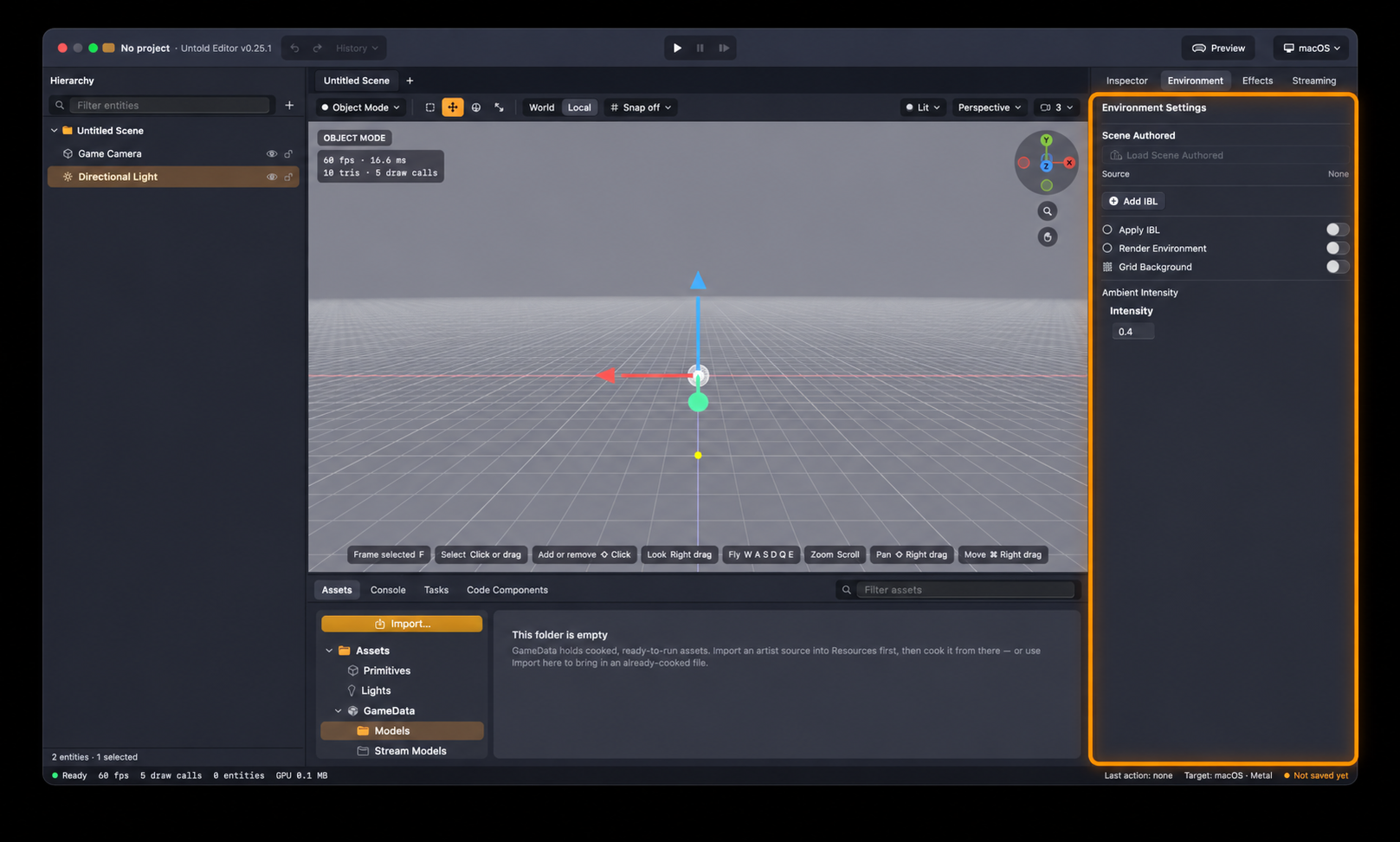
1. Load an Authored Environment
Some assets contain environment settings that can be loaded directly into your scene.
In the Asset Browser, select an asset containing environment data, such as a Blender-authored scene, tiled scene manifest, or remote stream.
Open the Environment panel and verify that the Source field displays the selected asset.
Click Load Scene Authored to load the asset's environment settings into your scene.
Note: The Load Scene Authored button is only available when a supported authored asset is selected.
2. Add Image-Based Lighting (IBL)
Image-Based Lighting uses environment imagery to provide lighting and reflections, helping 3D objects appear more naturally integrated into their surroundings.
In the Asset Browser, select an asset to use as your lighting source.
In the Environment panel, click Add IBL to create an IBL probe from the selected asset.
Toggle Apply IBL to enable or disable the probe's lighting contribution.
3. Configure the Background
You can customize the background displayed behind your scene.
Toggle Render Environment to show or hide the environment background.
Use the background toggle to switch between:
Sky Background: Displays a procedural sky.
Grid Background: Displays a reference grid, useful when positioning objects and building scenes.
Note: The background toggle's label changes depending on which background is currently active.
4. Adjust Ambient Lighting
Ambient lighting provides general illumination throughout your scene.
Locate the Ambient Intensity field in the Environment panel.
Increase the value to brighten the scene's ambient illumination.
Decrease the value to reduce ambient illumination.
Adjust ambient intensity alongside IBL to achieve the lighting conditions you want for your scene.