How to Use the Inspector
The Inspector panel allows you to view and edit the properties of entities in your scene. Use it to modify transforms, configure materials, manage components, and customize entity behavior.
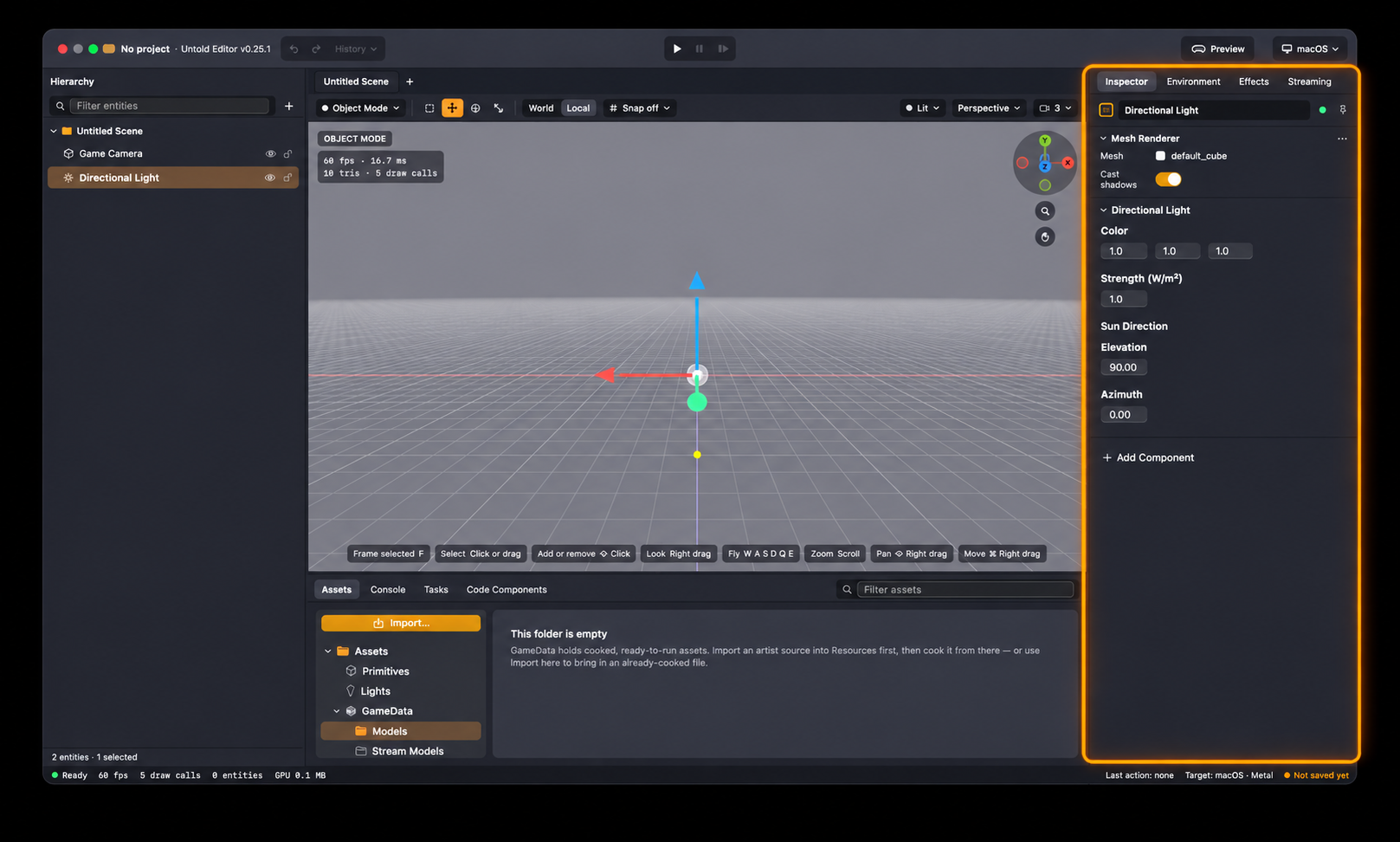
1. View an Entity's Properties
Select an entity in the Hierarchy or Viewport.
The Inspector displays the entity's name, visibility control, and a list of its components.
Each component, such as Transform, Mesh Renderer, or Light, appears in its own collapsible section.
Note: If no entity is selected, the Inspector displays an empty state. If multiple entities are selected, it displays the number of selected entities instead of their individual properties.
2. Rename an Entity
Click the entity's name in the Inspector header.
Enter a new name.
Press Enter or click outside the field to save the change.
3. Pin the Inspector to an Entity
Pinning allows you to keep an entity's properties visible while working with other objects in your scene.
Select the entity you want to inspect.
Click the Pin button in the Inspector header.
The Inspector will continue displaying that entity's properties, even when you select another entity in the Hierarchy or Viewport.
Click the Pin button again to return to normal selection behavior.
4. Edit a Component
Components define an entity's properties and behavior. For example, the Transform component controls an entity's position, rotation, and scale.
Click a component's header to expand or collapse its properties.
Modify the available fields, such as:
Transform: Adjust position, rotation, and scale.
Mesh Renderer: Configure the entity's material slots.
Light: Adjust the available lighting properties.
Changes are applied directly to the selected entity.
You can also click the ⋯ menu on a component to access additional options:
Reset: Restore the component's default values.
Copy: Copy the component's current values.
Paste: Apply previously copied component values.
Remove: Remove the component from the entity.
Note: The Paste option becomes available after copying component values.
5. Add a New Component
You can extend an entity's functionality by attaching additional components.
Select an entity in the Hierarchy or Viewport.
Scroll to the bottom of the Inspector and click Add Component.
Select a component from the list of built-in engine components.
To add a custom component defined in your project, look under From Code.
The new component will appear as an additional section in the Inspector.
6. Show or Hide an Entity
You can temporarily hide an entity without removing it from your scene.
Select the entity you want to show or hide.
Click the Visibility control in the Inspector header.
Click it again to restore the entity's visibility in the Viewport.
7. Undo Changes
Changes made through the Inspector can be reversed using the editor's Undo command.
This includes renaming entities, resetting component values, and adding or removing components.
You can experiment with entity properties and undo changes when needed.