How to Use the Texture Streaming Panel
The Texture Streaming panel allows you to manage texture resolution based on distance from the camera. This helps reduce memory usage in large scenes by loading higher-resolution textures for nearby objects and lower-resolution textures for distant objects.
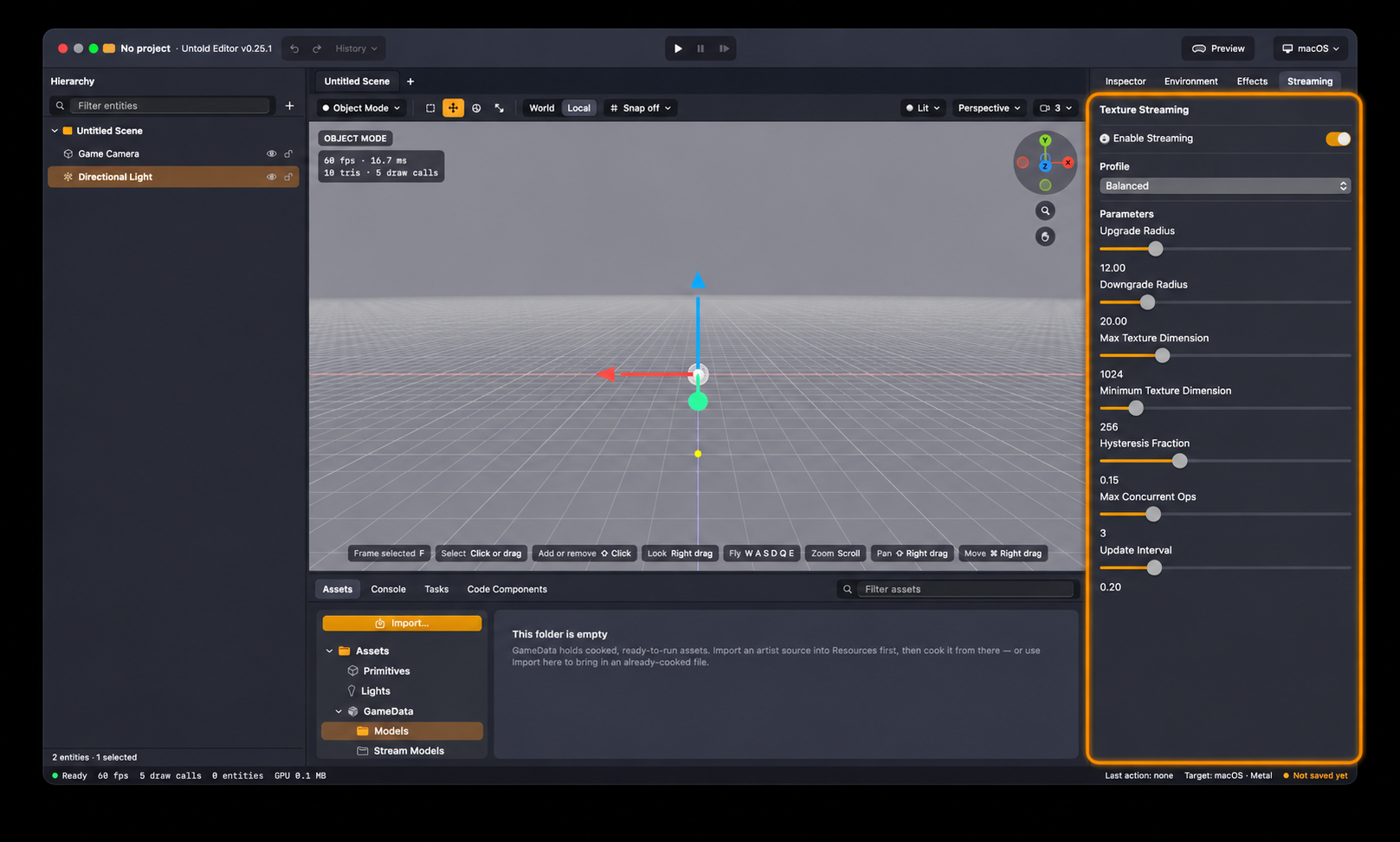
1. Enable Texture Streaming
Open the Texture Streaming panel.
Toggle Enable Streaming to activate texture streaming for your scene.
When enabled, Untold Engine automatically manages texture resolution based on the configured streaming settings.
2. Choose a Streaming Profile
Streaming profiles provide predefined settings optimized for different types of scenes.
Locate the Profile dropdown.
Select one of the available profiles:
Detailed
Super Detailed
Open World
Balanced
Tiled
The selected profile automatically configures the streaming parameters.
Note: Profiles are starting points. You can customize individual parameters to better match your scene's requirements.
3. Configure Texture Streaming Parameters
Expand the available settings to fine-tune how textures are loaded and managed.
Upgrade Radius: Defines the distance from the camera within which textures are loaded at full resolution.
Downgrade Radius: Defines the distance beyond which textures are reduced to their minimum configured resolution.
Max Texture Dimension: Sets the maximum texture resolution used for objects at intermediate distances.
Minimum Texture Dimension: Sets the texture resolution limit for distant objects.
Hysteresis Fraction: Adds a buffer around streaming distance thresholds to prevent textures from repeatedly switching resolutions when the camera moves near a boundary.
Max Concurrent Ops: Controls the maximum number of texture streaming operations that can execute simultaneously.
Update Interval: Determines how frequently, in seconds, the engine evaluates whether textures should change resolution.
Tip: Hover over any slider to display a tooltip explaining its purpose.
4. Save Your Changes
Changes to texture streaming settings are tracked by the editor.
Adjust the streaming parameters to suit your scene.
Preview the results by moving the camera closer to and farther from objects in the Viewport.
Save your scene to preserve the updated settings.
You can use the editor's Undo command to reverse individual changes.
Tip: Texture streaming is particularly useful for large architectural scenes, open environments, and applications running on memory-constrained devices such as Apple Vision Pro. Experiment with the upgrade and downgrade distances to find a balance between texture quality, memory usage, and streaming activity.